
Quick Reference Guide for Website Structure
Website Structure

Homepage overview
Header
The header contains the site logo, primary navigation menus, and the login button. It provides quick access to key sections of the website and remains consistent across all pages for easy navigation.
Site Logo
The site logo represents the brand’s core identity and is configured early in the setup to maintain a unified look across headers, menus, and digital assets.
Navigation Menus
The navigation menu is set up during website configuration to organize pages, improve usability, and maintain a consistent site structure.
Login Icon
The Login button provides secure access for members or administrators to enter their accounts and manage personalized features
Events List
The Events List displays upcoming events managed through the Events Manager plugin, allowing visitors to view scheduled activities, announcements, and important dates.
News List
The News List highlights the latest updates, announcements, and articles to keep visitors informed about recent developments and important information.
Job Postings
The Job Postings section features available career opportunities related to the organization, providing details such as position title, location, and a brief description.
Footer
The footer appears at the bottom of every page and contains essential information such as copyright details, additional navigation links, and quick access to key sections of the website.
Social Media Icons
The Social Media icons link to the organization’s official social platforms, allowing visitors to connect, follow updates, and engage with the community outside the website.
Note: The header configuration includes the site logo for branding, structured navigation menus for easy page access and a secure login option that allows members to access their accounts and personalized features.
Tip: You must be logged in as an Administrator to edit and configure these elements. Use Elementor for visual editing and layout adjustments — it allows you to easily update the site logo, navigation menus, external buttons, and login components through a real-time drag-and-drop interface while maintaining design consistency across the website.
Shortcodes Usage
Events List Shortcode
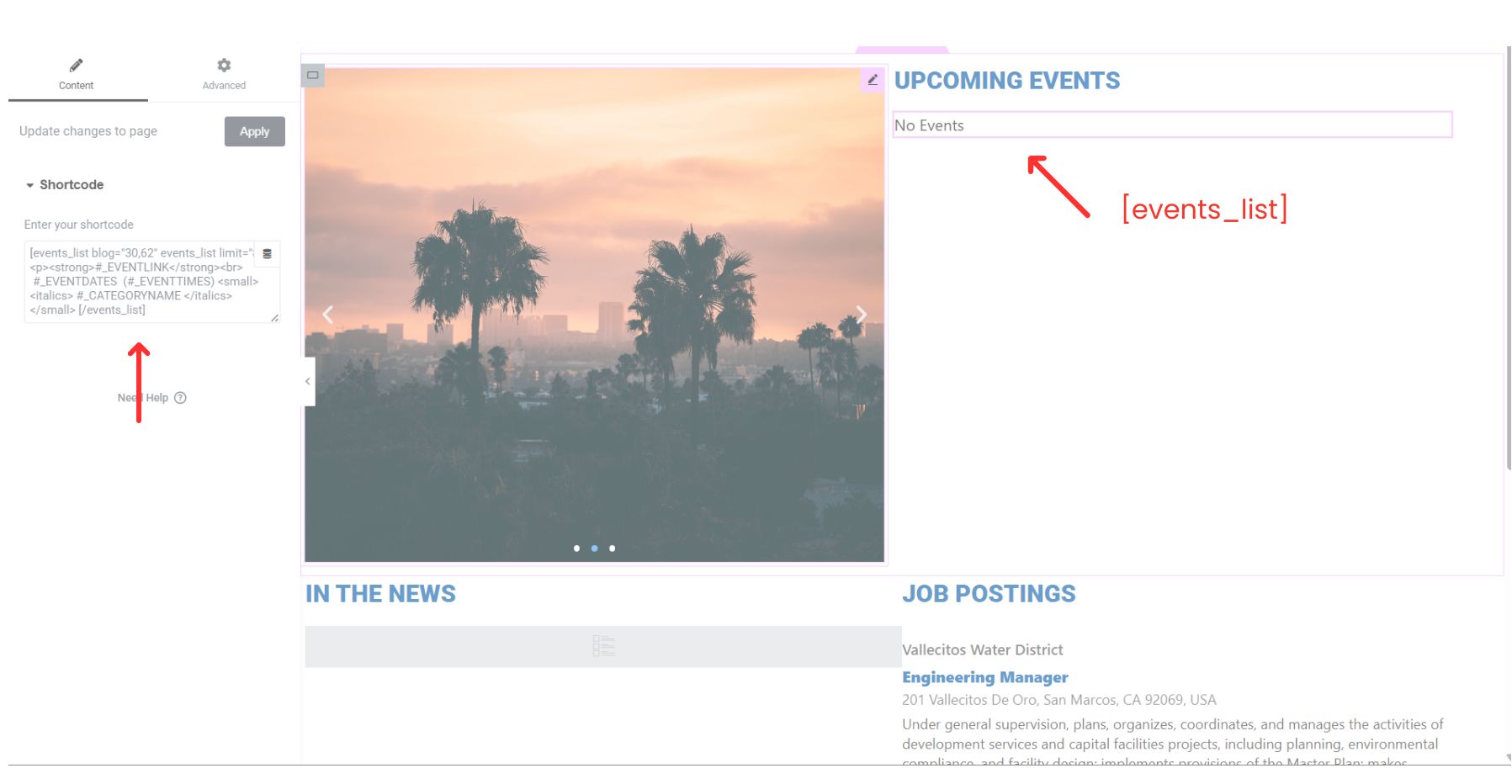
Event list manager overview
[events_list]
This shortcode is used to display upcoming events on the page using the Events Manager plugin. It dynamically pulls event data from the system and automatically updates the list whenever new events are created or existing events are modified. This shortcode allows administrators to easily show event titles, dates, and categories within the Events section of the website without manually updating the page content.
Job Posting RSS
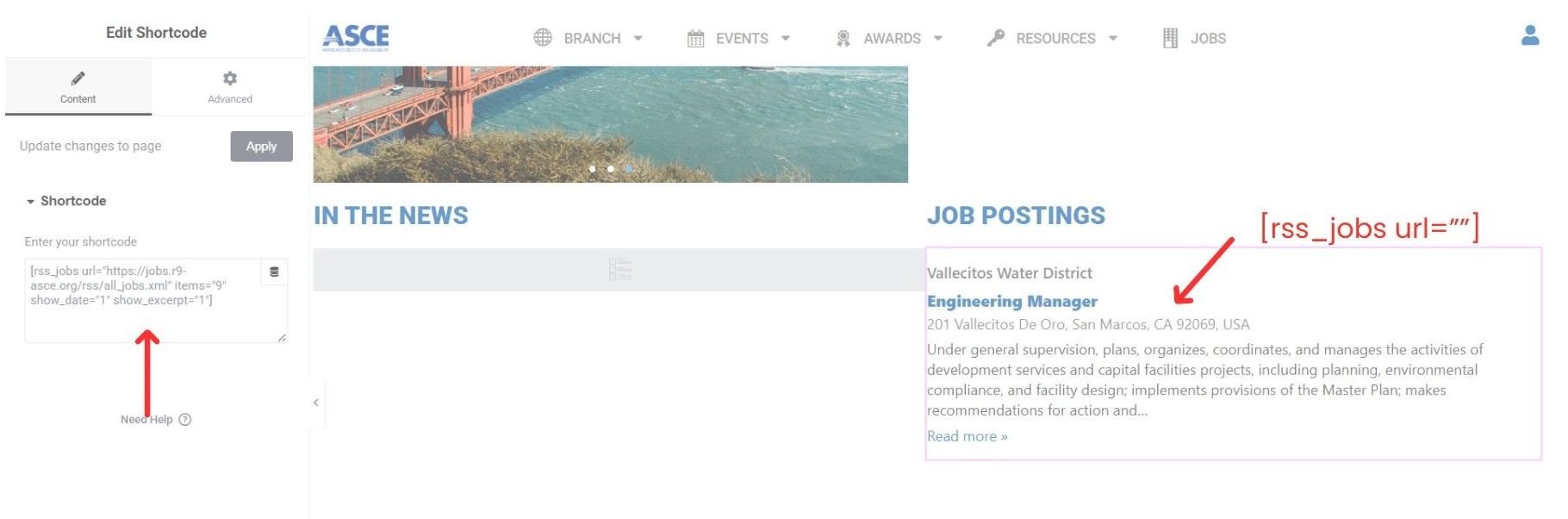
Job Posting Overview
[rss_jobs]
This shortcode is used to display job listings on the website by pulling data from an external RSS feed. It automatically fetches the latest job postings, including the position title, location, and short description, ensuring that the job listings section stays updated without manual content updates. Parameters such as the feed URL, number of items, and display options can be configured within the shortcode settings.