
Quick Reference Guide for Initial Website Configuration
OVERVIEW - Site Configuration
To properly configure your website, there are (five) basic elements that need to be setup. These are described in more detail below.
(A) Site Header – This has your logo, menu bar, etc.
(B) Website email configuration – This controls how emails are sent from the website
(C) Verify License Keys (Elementor, WPForms, Event Manager, ultimate Manager)
(D) Configure payment gateways (Event Manager, WPForms)
(E) Google ReCaptcha Keys
(F) Postie configuration
(A) Site Header
A1. Site Logo
1.1 Setting the site logo
Click each image to enlarge.
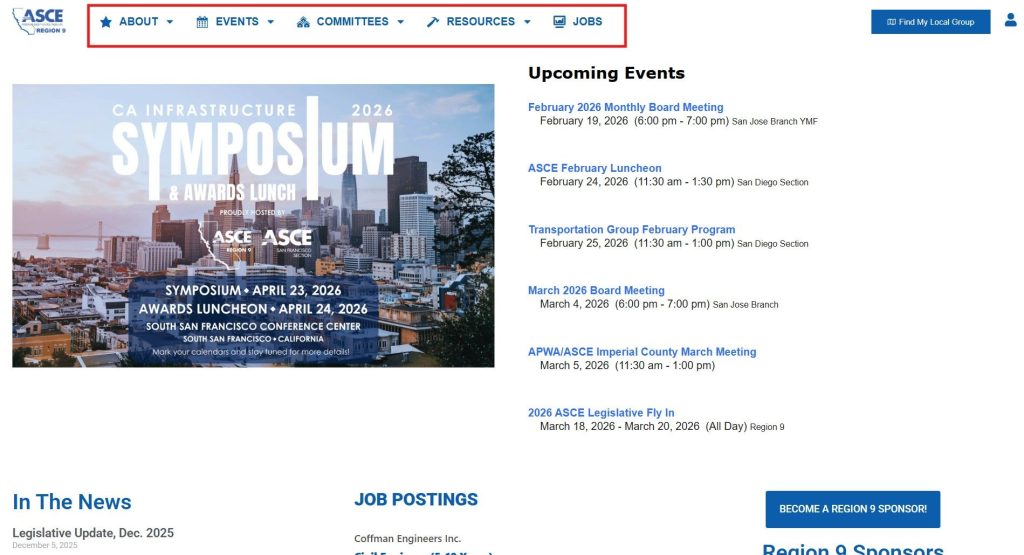
A2. Navigation Menus
A3. Local Group Button and Login
Site Logo
The site logo represents the brand’s core identity and is configured early in the setup to maintain a unified look across headers, menus, and digital assets.
Setting the site logo:
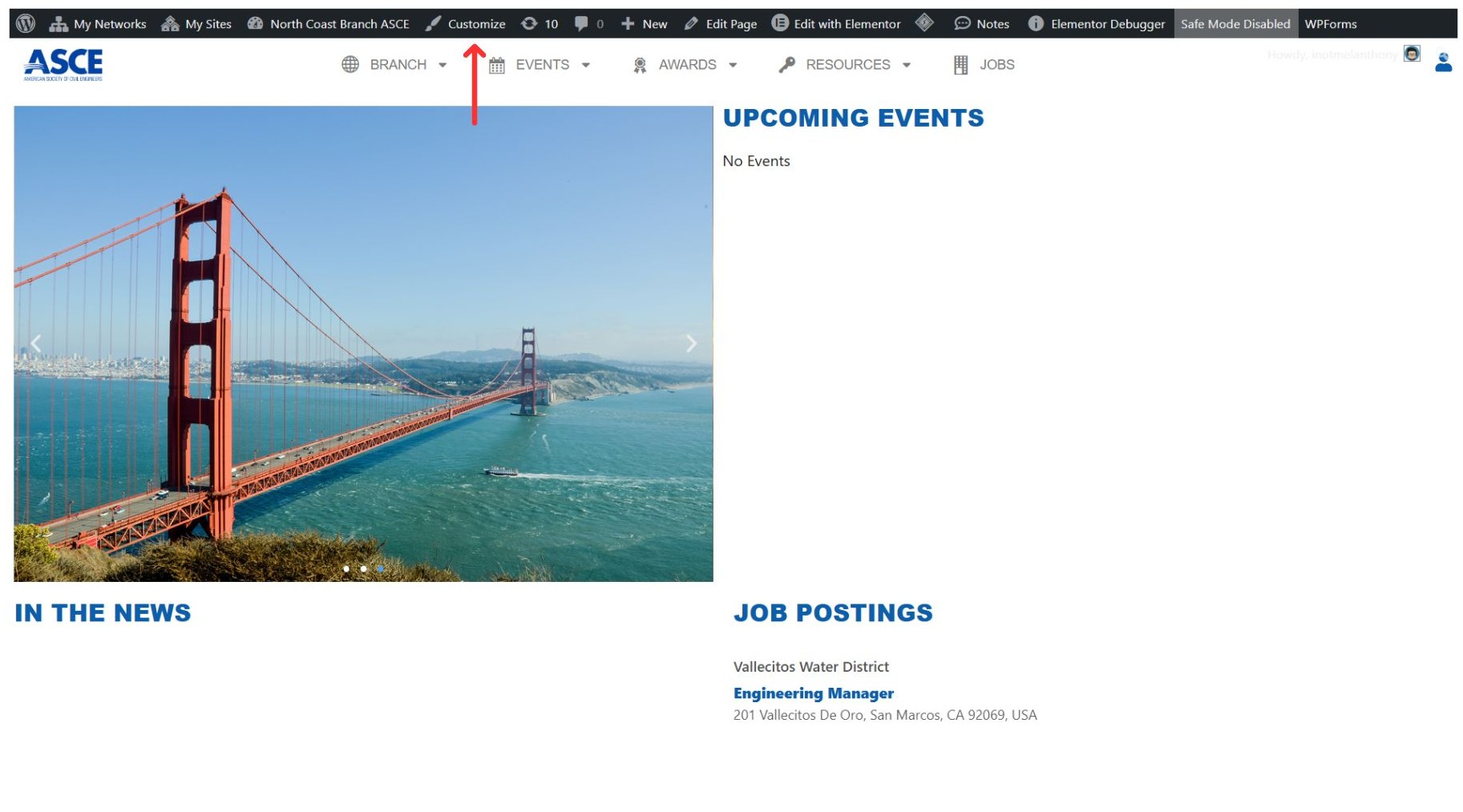
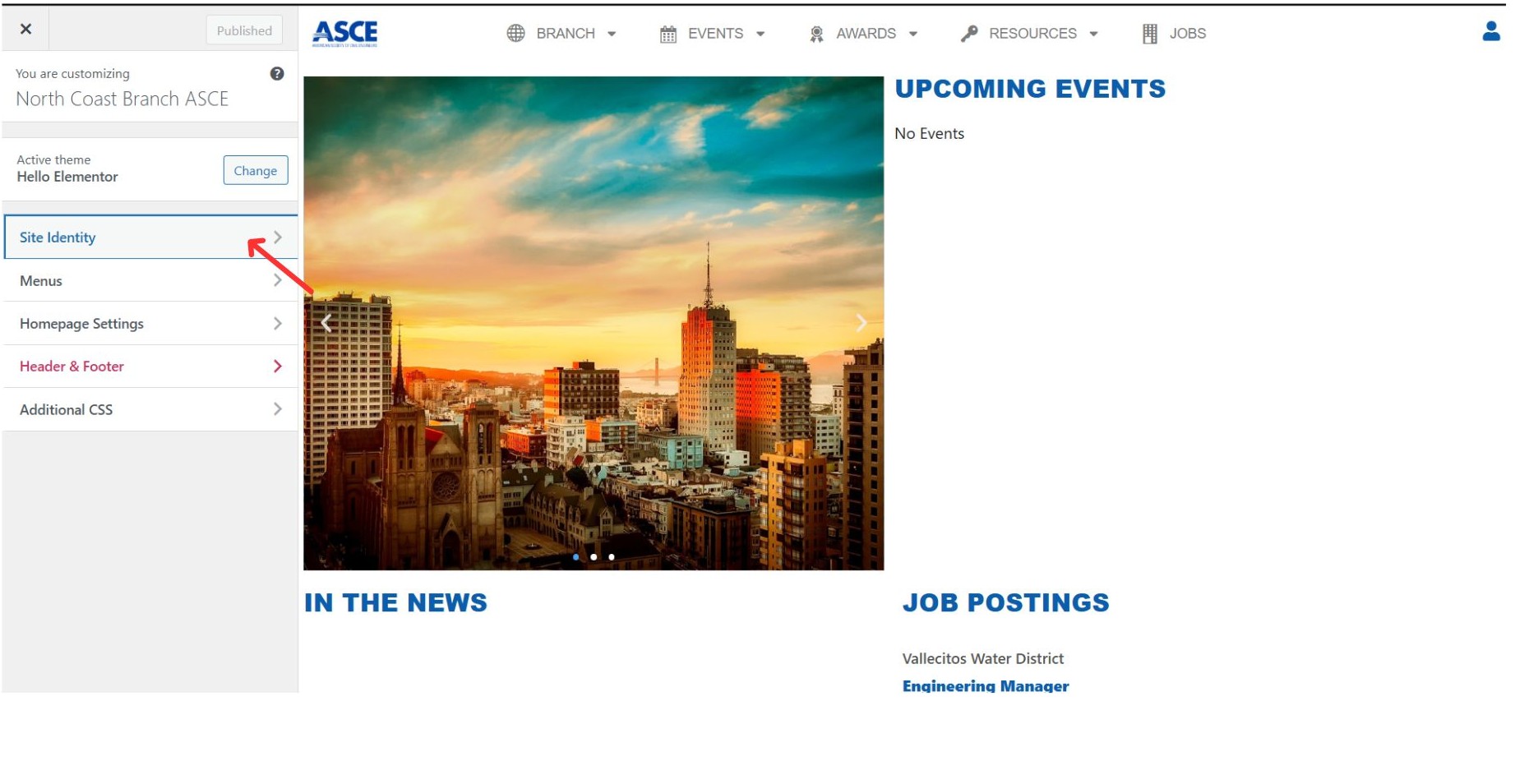
- Go to Customize
- Click Site Identity
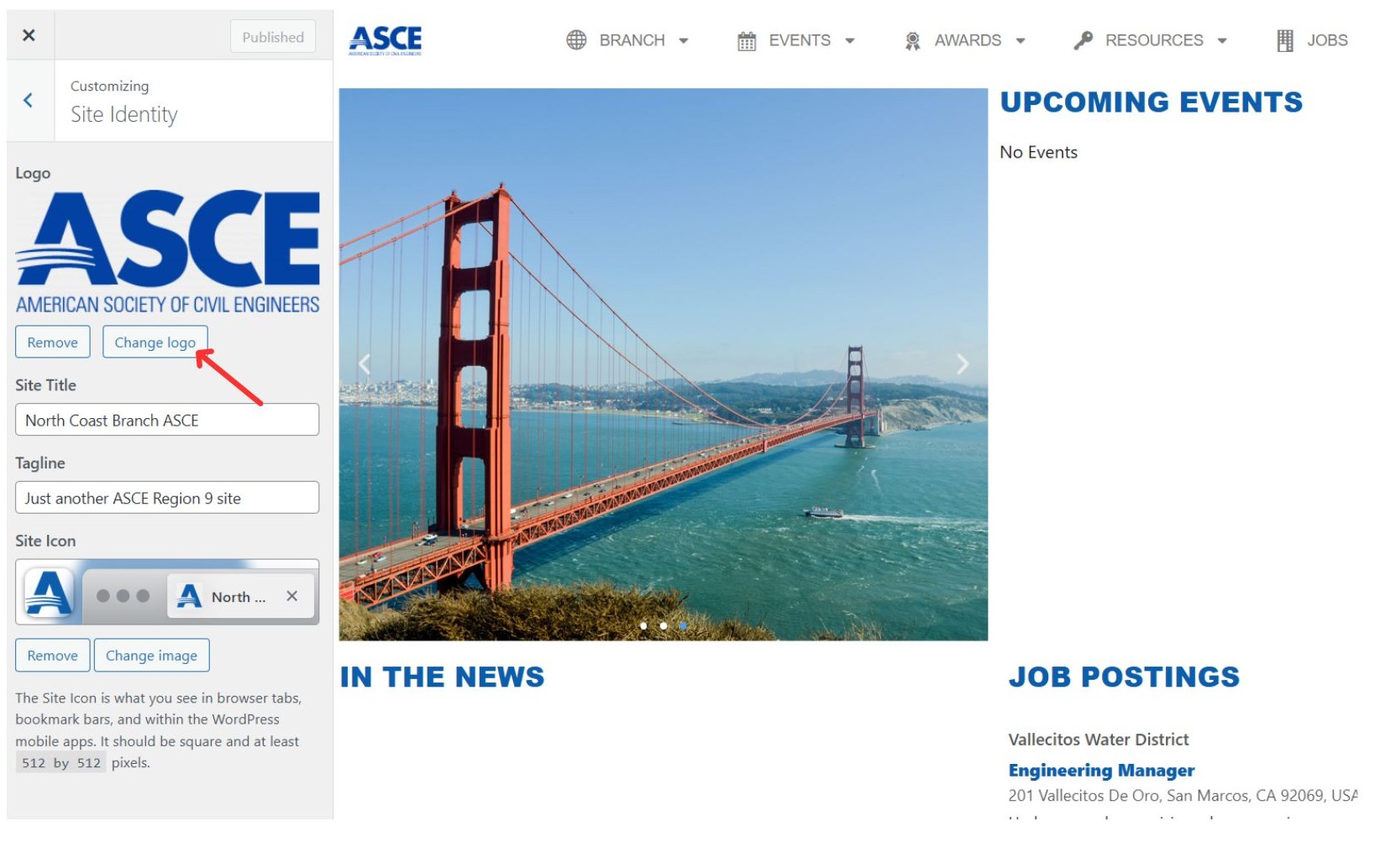
- Select Logo
- Upload image
- Publish
Tip: You must be logged in as admin.
Navigation Menus
The navigation menu is set up during website configuration to organize pages, improve usability, and maintain a consistent site structure.
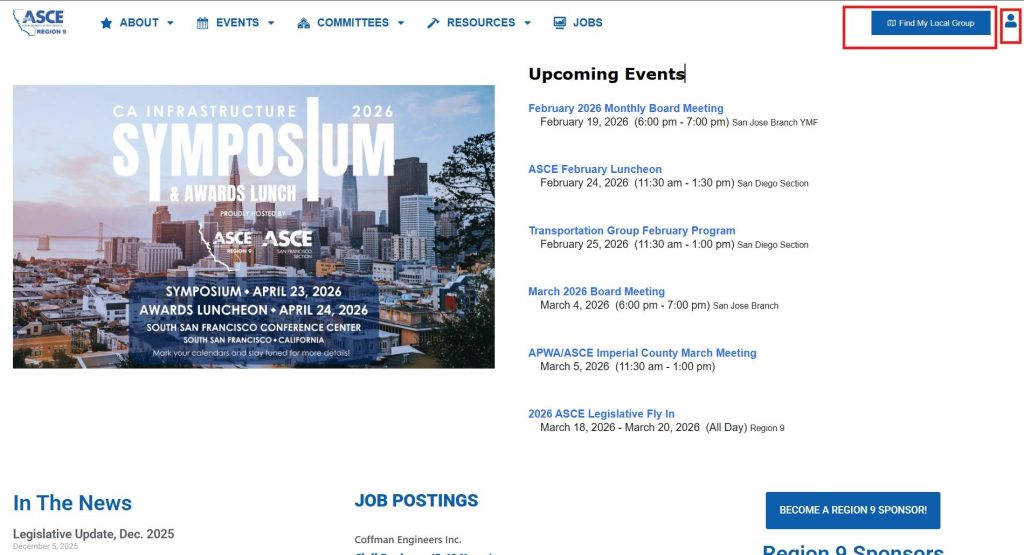
Find My Local Group Button
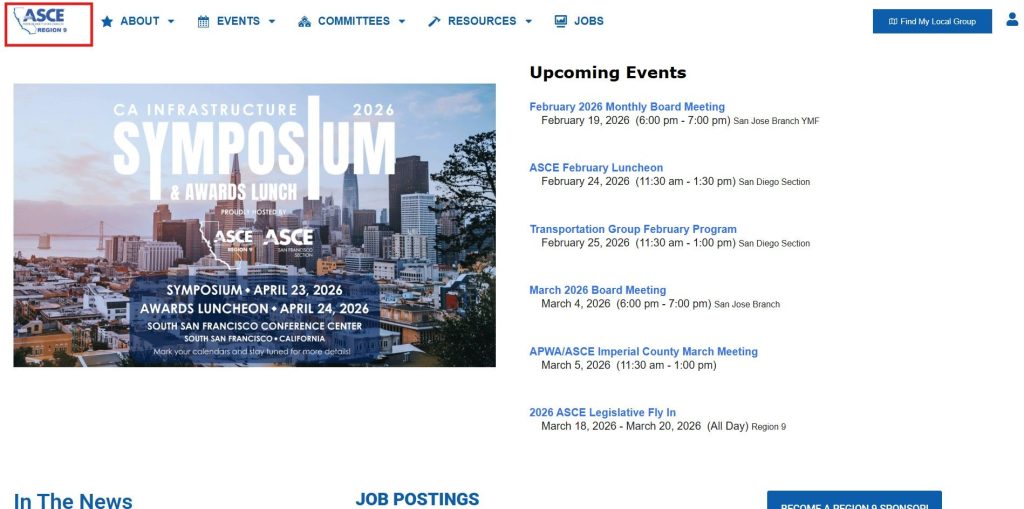
The Find My Local Group button directs users to the official ASCE community locator, helping them easily discover and connect with nearby local groups.
Login Icon
The Login button provides secure access for members or administrators to enter their accounts and manage personalized features
Note: The header configuration includes the site logo for branding, structured navigation menus for easy page access, a Find My Local Group button that redirects users to the official ASCE community locator, and a secure login option that allows members to access their accounts and personalized features.
Tip: You must be logged in as an Administrator to edit and configure these elements. Use Elementor for visual editing and layout adjustments — it allows you to easily update the site logo, navigation menus, external buttons, and login components through a real-time drag-and-drop interface while maintaining design consistency across the website.
(B) WP Mail SMTP Configuration
1. WP Mail SMTP Menu Access
2. Primary Connections
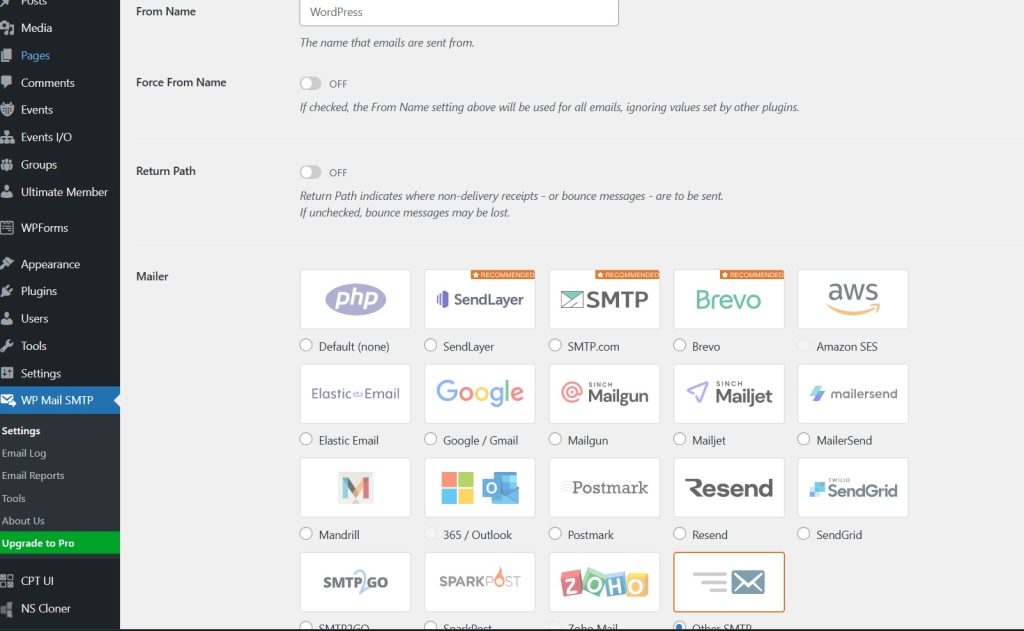
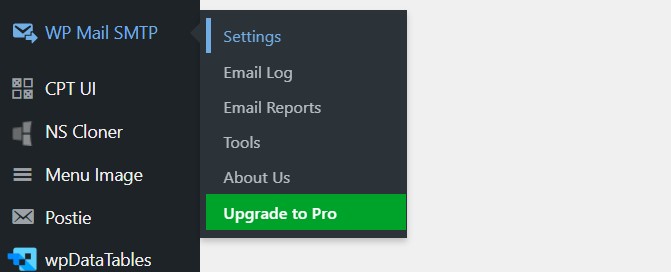
WP Mail SMTP Menu Access
The WP Mail SMTP menu provides access to Settings, Email Logs, Reports, and Tools. Administrators use this area to configure mailer options, monitor email activity, troubleshoot delivery issues, and manage SMTP-related features.
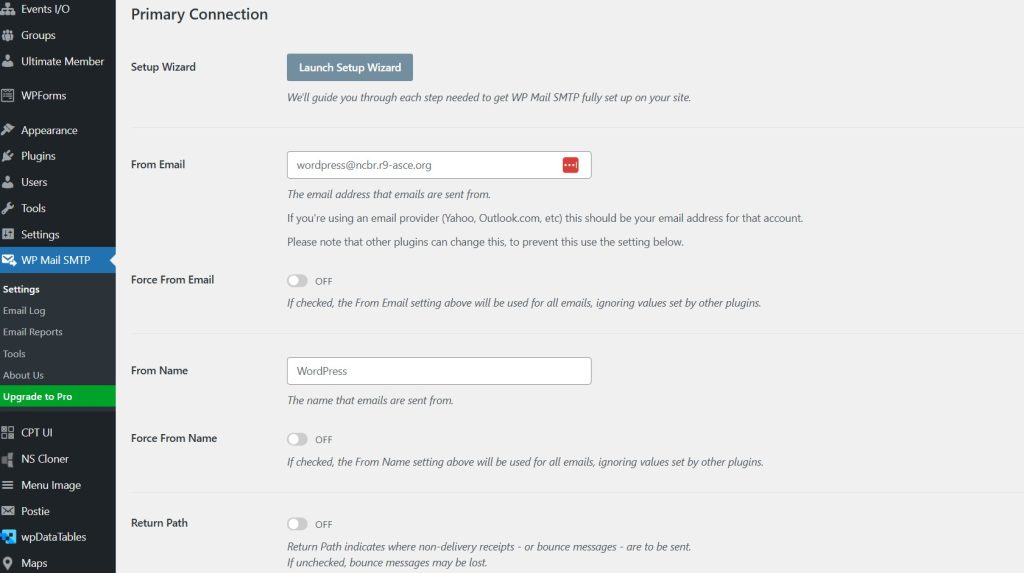
Primary Connection Settings
The Primary Connection panel is where the main email configuration is set, including the From Email, From Name, and optional settings like Force From Email and Return Path. These settings define how outgoing emails appear and help improve deliverability and authentication.
Mailer Selection
This section allows the Administrator to choose the email mailer service used by the website. Select the appropriate SMTP provider (such as Other SMTP, Google, SendGrid, or AWS) to ensure reliable email delivery for forms, notifications, and system messages.
The WP Mail SMTP configuration ensures that all website emails are sent securely and reliably by setting up the correct mailer service, defining sender details, and managing email delivery settings. Administrators can access this section to configure SMTP connections, monitor email activity, and troubleshoot any email-related issues within the website.
Tip: You must be logged in as an Administrator to configure WP Mail SMTP settings. Make sure to select the correct mailer, use a valid From Email that matches your domain, and enable recommended options like Force From Email when needed to improve email deliverability and prevent messages from going to spam. For example: Gmail: smtp.gmail.com / 587 / TLS